Serene Ganesha Statue Close-Up AI Prompt For Girls
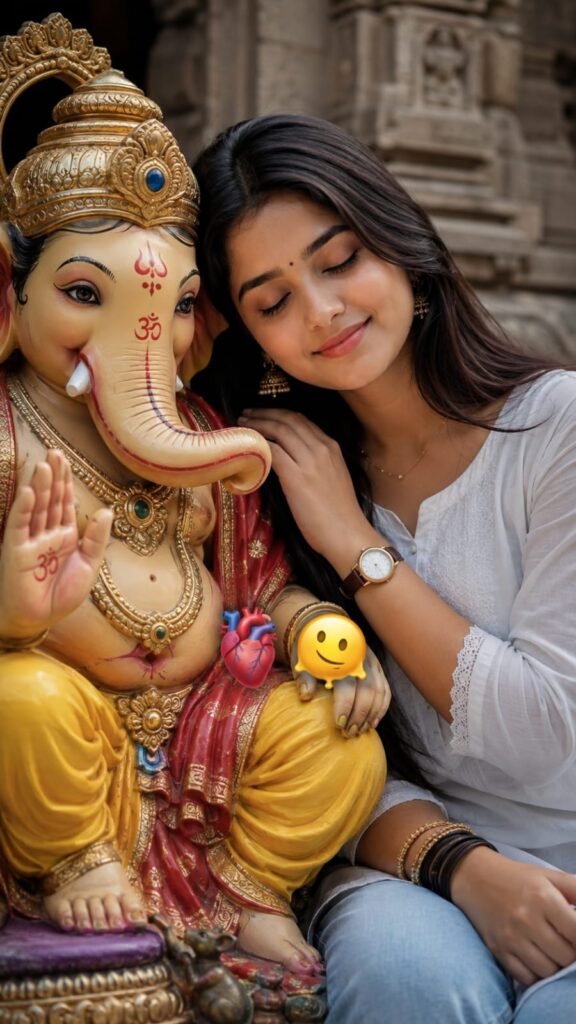
Om Editing Top: Serene Ganesha Statue Close-Up AI Photo Style
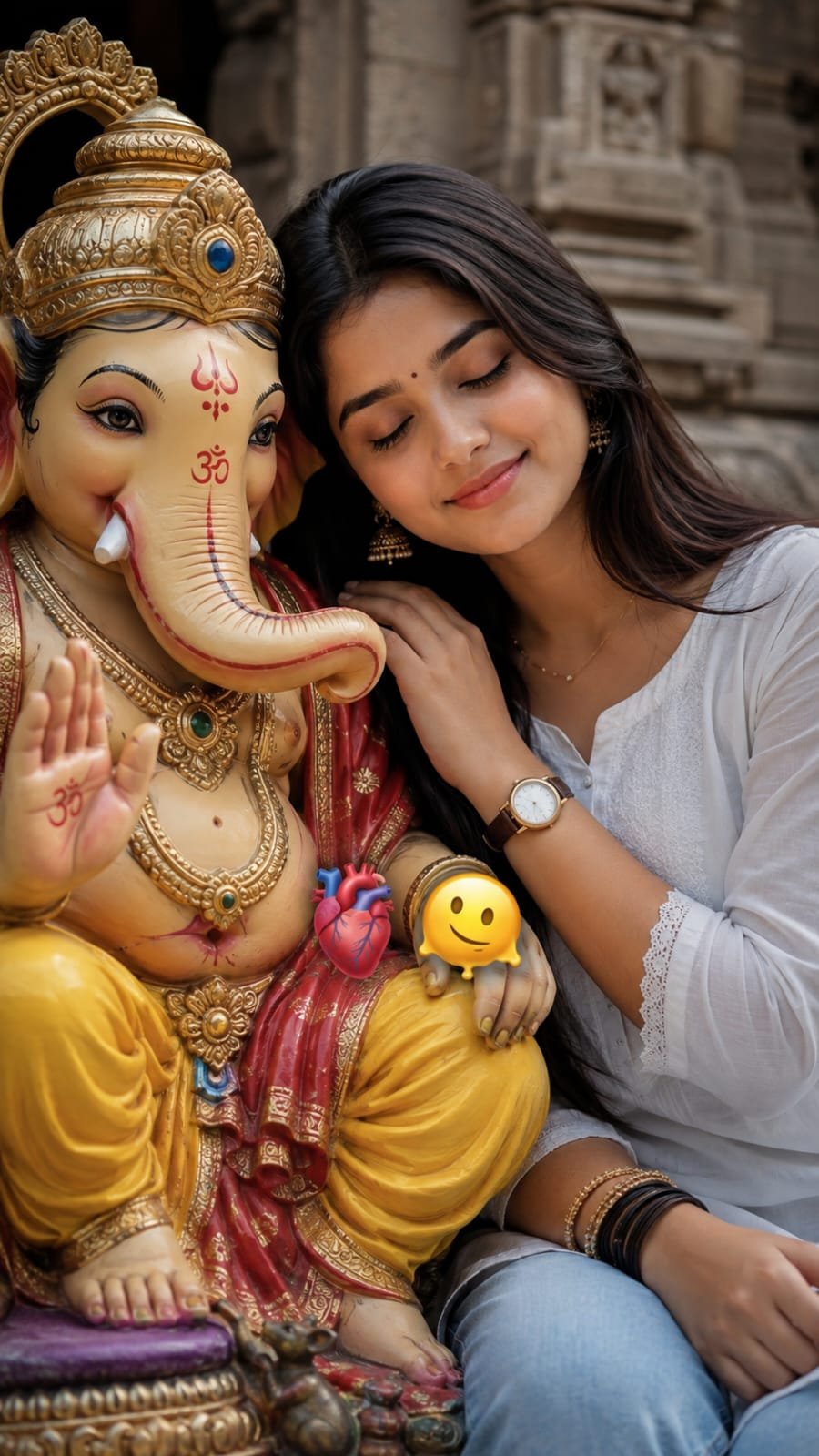
Om Editing Top brings a calm and emotional Ganesha statue close-up style to your personal photos. Instead of creating a loud, festival-style image with a direct camera pose, this editing concept focuses on a quiet moment in which a girl gently leans against a detailed Ganesha statue with her eyes closed. The result feels peaceful, personal, and naturally expressive.
Read Also: Om Editing Top: Traditional Ganesh Puja Portrait | Om Editing Top Golden Crown Ganesh Ji Card
This AI photo style is suitable for girls who want a devotional, artistic, and soft-looking image without making the photo appear overly staged. It combines a simple everyday outfit with a colourful statue background, creating a balanced scene that feels both modern and traditional. The relaxed pose also helps the final image look more emotional than a regular front-facing portrait.
Whether you are creating a social media display picture, a devotional status image, or a memorable AI-generated portrait, this Om Editing Top idea can give your photo a gentle and meaningful appearance. It works especially well when the original picture clearly shows your face and hair, because the AI can preserve your identity while building the close-up composition around the Ganesha statue.
What This Ganesha Statue Photo Style Actually Gives You
The main feature of this style is its serene facial expression. The closed-eye look suggests a quiet, reflective moment instead of a forced smile or an energetic pose. A soft head lean against the statue makes the image feel intimate and emotional, as though the person is resting peacefully beside a meaningful spiritual figure.
The Ganesha statue remains an important part of the composition. Its detailed shape, colourful decoration, and traditional appearance provide visual richness around the subject. The close-up framing keeps attention on the girl’s face, hair, and gentle pose while still showing enough of the statue to make the theme immediately clear.
Om Editing Top also works because the styling stays simple. A white top and light jeans create a clean, casual appearance that does not compete with the statue’s colours. The contrast between light clothing and a decorated Ganesha background helps the subject stand out while keeping the overall photo soft, realistic, and suitable for a personal portrait.
- Lighting: soft, balanced light that keeps the face visible without harsh shadows.
- Mood: peaceful, emotional, devotional, and quietly thoughtful.
- Colours: light clothing combined with the colourful details of the Ganesha statue.
- Composition: a close-up portrait with the face and gentle lean as the main focus.
- Realism: natural facial proportions, believable hair placement, and a relaxed posture.
A good result should not look like a random face placed beside a statue. The lighting on the face, the direction of the lean, and the scale of the statue should appear connected. If the image looks too artificial, the issue is often caused by a poor base photo, an unclear face, or a pose that does not give the editing tool enough information.
How to Use the Om Editing Top Style on Mobile
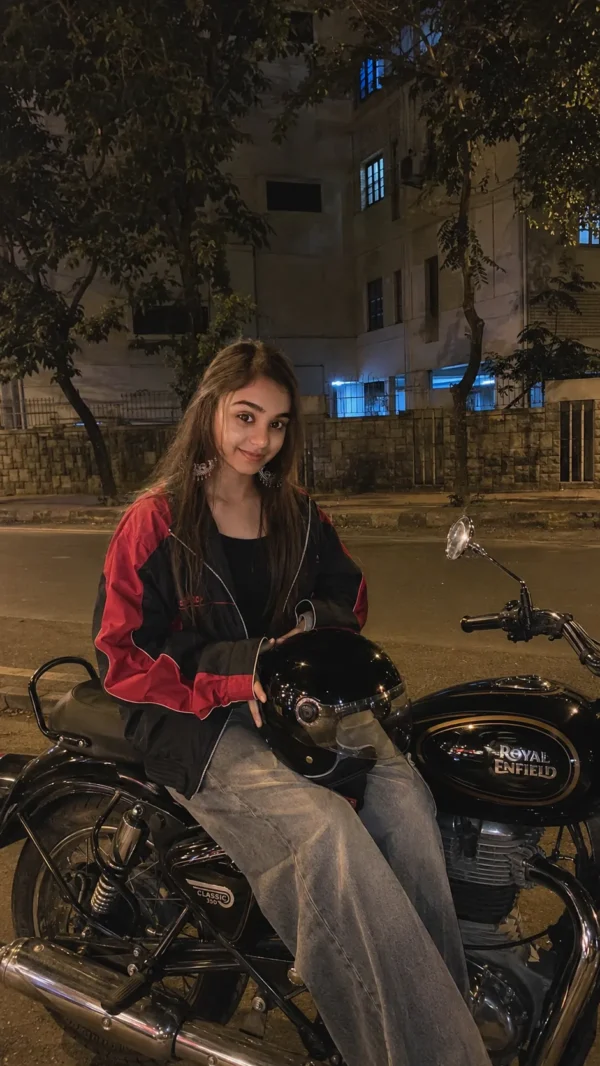
You do not need advanced editing experience to create this type of AI photo. A phone, a clear personal image, and an AI image tool that accepts an uploaded photo are usually enough. Before starting, choose a picture that shows your face and hair properly, because these details help the tool create a more believable close-up result.
Use the provided AI prompt exactly as written in the copy box on the page. Avoid changing important details while you are testing the first result. If the generated image has a stiff pose or an unnatural expression, make a small adjustment in a later attempt instead of changing several parts at once.
- Select your base photo: Open your phone gallery and choose a sharp image in which your face, hair, and general appearance are easy to see. A relaxed front-facing photo is usually more useful than a picture taken from an extreme side angle.
- Open your AI image tool: Choose the image-generation or photo-editing option that allows you to upload a reference photo. Check that the tool has access to the full image and that the face is not hidden by stickers, sunglasses, or heavy filters.
- Upload the photo: Tap the upload button, select your chosen picture, and wait until the preview appears. If the preview crops your head or removes part of your hair, select another image or adjust the crop before continuing.
- Paste the supplied prompt: Copy the prompt from its designated box and paste it into the tool’s text field without rewriting its instructions. This helps retain the intended Ganesha statue close-up, closed-eye expression, gentle lean, and simple outfit styling.
- Generate the first image: Start the creation process and review the result carefully. Look at the face, eyes, head position, hands, clothing, and the way the body appears to rest against the statue.
- Regenerate when necessary: If the lean looks rigid, the expression feels unnatural, or the close-up framing is awkward, generate another version. A softer pose request can help when the subject appears to press too strongly against the statue.
- Save the best version: Download the image only after checking the face and statue details at full size. Compare multiple versions and choose the one with the most natural expression, cleanest composition, and realistic proportions.
Mobile users should also keep a copy of the original photo before uploading it. This makes it easier to try different versions without losing the source image. For the best Om Editing Top result, change only one issue at a time during regeneration, such as a stiff lean, an awkward crop, or an expression that appears too dramatic.
Which Photos Work Best for This Close-Up AI Edit?
The quality of the starting image has a direct effect on the final AI portrait. Choose a high-resolution photo with a clear face and visible hair. The image does not need to be professionally photographed, but it should not be blurry, heavily compressed, or covered by a strong beauty filter. Clear facial details give the tool a better reference for creating the closed-eye expression while keeping the person recognisable.
A front-facing or slightly turned photo is generally more reliable than a heavily angled image. When the face is turned too far away, the tool may struggle to create a natural close-up and may place the nose, eyes, or jawline incorrectly. A relaxed expression is also preferable because it transitions more naturally into the peaceful, eyes-closed mood of this Ganesha statue style.
Lighting and background matter as well. Use a photo taken in soft daylight or even indoor light where the face is evenly visible. Avoid deep shadows across the eyes, bright light directly behind the head, and backgrounds with too many people or objects. Clothing should be simple enough for the intended white-top and light-jeans appearance to look believable rather than visually crowded.
- Best angle: front-facing or only slightly turned, with the complete face visible.
- Best resolution: the original camera image rather than a screenshot or repeatedly forwarded social media photo.
- Best lighting: soft daylight or even indoor illumination without harsh facial shadows.
- Best background: uncluttered and simple, so the AI can focus on the person’s features.
- Best clothing: casual clothing with clean shapes; a simple top works better than busy patterns.
- Best expression: relaxed and natural, without an exaggerated smile or tense facial muscles.
Before using the image, remove distractions such as sunglasses, large face stickers, or objects covering the hairline. A clear reference does not guarantee a perfect result every time, but it significantly improves the chances of getting a soft lean, accurate facial structure, and a realistic devotional portrait.
Pro Tips for the Best Om Editing Top Results
To get the best result from this serene Ganesha statue close-up concept, start with a clear and well-lit source photo. Your face and hair should remain visible, because the image tool needs enough visual information to create a natural close-up composition. A relaxed photo usually produces a more believable emotional expression than a picture with a forced smile or dramatic pose.
Om Editing Top images look more polished when the mood, lighting, and pose work together. After generating the first image, check whether the head lean appears comfortable and whether the Ganesha statue remains detailed without distracting from the subject. Small improvements in the next generation can make the final picture feel much more natural.
- Use a sharp, high-resolution photo with your face clearly visible.
- Choose a front-facing or slightly turned photo instead of an extreme side angle.
- Keep your hairstyle visible so the close-up framing looks complete.
- Check that the closed-eye expression appears peaceful rather than artificial.
- Ask for a softer pose if the head lean looks stiff or too carefully arranged.
- Review the hands, hair edges, clothing, and statue details before saving the image.
- Generate more than one version and select the frame with the most natural balance.
For social media use, remember that the image may be cropped into a square, portrait, or vertical format. Leave enough visual space around the face and statue so important details do not disappear when you upload the final Om Editing Top photo.
Common Mistakes to Avoid
Even a strong image concept can lose its realistic feel when the source photo does not match the intended composition. A very dark picture, a heavily filtered selfie, or a face turned too far away can make the result harder for the tool to interpret. Choosing a suitable base image is one of the most important steps for a clean and emotional close-up.
It is also useful to inspect the generated image instead of accepting the first result immediately. AI-created photos can sometimes produce uneven facial details, unnatural clothing edges, or a pose that does not match the peaceful feeling of the scene. Correcting these issues through another generation helps the final picture look more convincing.
- Using a blurry source photo: Low detail can affect facial accuracy, hair texture, and overall sharpness.
- Choosing an extreme angle: A face turned too far away may create an awkward close-up or an incomplete profile.
- Forcing a dramatic expression: A tense smile or exaggerated pose can weaken the quiet, devotional mood.
- Ignoring the head position: A rigid lean may look uncomfortable and reduce the emotional quality of the image.
- Overusing filters: Heavy filters can change skin tones and make the generated result appear less natural.
- Not checking the background: Unclear statue details or distracting objects can pull attention away from the subject.
- Posting without reviewing the crop: Social platforms may cut off the face, clothing, or important Ganesha statue details.
Another common mistake is expecting every generation to look identical to the imagined result. Image tools can interpret the same direction in different ways, so compare several versions and select the one with the softest expression, cleanest details, and most balanced framing.
Best Use Cases and Creative Ideas
This type of Om Editing Top image works well wherever you want to share a calm, emotional, and respectful visual. The close-up composition keeps attention on the expression and the colourful Ganesha statue, making it suitable for personal posts as well as festival-related creative content. You can also save different crops for different platforms instead of using one size everywhere.
For Instagram, use the portrait version as a feed post or story background, and choose a tighter crop for a profile picture if the face remains clear. The image can also support a peaceful caption, a festive greeting, or a personal reflection without needing a crowded design.
- Instagram posts: Share a portrait crop with a simple caption and balanced spacing.
- Profile pictures: Use a clear face-focused crop that remains recognisable at a small size.
- Thumbnails: Place the close-up image beside short, readable text for devotional or creative videos.
- Reels covers: Select a vertical frame where the face and statue remain visible after cropping.
- Personal portfolios: Add the image to a collection showing portrait editing, mood-based compositions, or AI creativity.
- Festival stories and status updates: Use a clean version with enough empty space for a short message.
If you are building a portfolio, keep the original and edited versions together. This lets viewers understand the transformation while showing how composition, emotion, colour, and styling can work together in one portrait concept.
Variations You Can Try with Om Editing Top
Once you have a satisfying result, experiment with the mood without losing the gentle feeling of the scene. You can try warmer golden lighting for a festive atmosphere, soft daylight for a natural portrait, or a slightly darker background that makes the statue and face stand out. Keep the expression relaxed so the variation still feels connected to the original idea.
Colour and setting changes can also give every image a different personality. A pastel background may create a delicate and modern look, while richer red, orange, or gold tones can make the frame feel more traditional. Seasonal details, subtle flowers, or a softly decorated setting may add context, but they should support the subject rather than overcrowd the close-up.
- Try a warm sunrise mood with gentle gold and peach tones.
- Experiment with cool blue or lavender lighting for a peaceful evening appearance.
- Use soft white and pastel colours for a clean, minimal portrait style.
- Test a richly coloured festive background with controlled decorative details.
- Create a monsoon-inspired setting with soft window light and a calm atmosphere.
- Try a spring variation with subtle flowers and fresh green tones.
- Compare indoor temple-inspired surroundings with a simple uncluttered backdrop.
- Use a slightly wider composition if you want more of the statue and outfit to appear.
You can also explore small styling differences, such as a softer casual appearance, a more traditional colour palette, or a simple modern portrait mood. Generate each variation separately and compare the face, pose, lighting, and background before choosing the version that best matches your purpose.
Try the Om Editing Top Ganesha Close-Up Style
This serene Ganesha statue close-up is a useful way to create a personal image with a quiet expression, gentle pose, and meaningful background. With a clear source photo and careful review of each result, Om Editing Top can help you explore natural-looking portrait variations for posts, profile pictures, thumbnails, reels covers, and creative portfolios.
Start with the version that feels most comfortable, then test a few lighting, colour, and seasonal ideas to make the image your own. Choose the final result with the clearest face, softest expression, and most balanced statue details, and share it in the format that suits your platform.
FAQ – Om Editing Top
How can I create an Om Editing Top Ganesha photo from my own picture?
Start with a clear personal photo and upload it to an AI image editor that supports image-based editing. Apply the Om Editing Top Ganesha style, review the facial details and pose, and regenerate the image if the result looks unnatural.
Why does my AI Ganesha photo look different from the reference?
AI tools interpret the same style differently depending on the original photo, image quality, facial angle, and chosen settings. Small changes in the source image can affect the pose, statue design, clothing, lighting, and overall composition.
Does this Ganesha AI photo style work on mobile?
Yes, you can create this style on a mobile phone if your AI editing tool has a web or app-based image upload option. Use a stable internet connection, grant the required photo permissions, and choose a high-resolution image for better detail.
Is Om Editing Top Ganesha photo editing free?
The cost depends on the AI image tool you use, because some offer free credits while others require a subscription or paid generations. Check the tool’s current plan and usage limits before uploading or generating multiple versions.
Which selfie is best for a close-up Ganesha AI edit?
Choose a well-lit photo where your face, hair, and main facial features are clearly visible. A relaxed, front-facing or slightly angled selfie usually gives the editor enough information to create a more natural close-up result.
How can I make the closed-eye pose look natural in an AI photo?
Use a relaxed source photo and regenerate the image if the eyelids or head position appear stiff. Softer facial expressions, balanced lighting, and a gentle pose usually create a more believable emotional effect.
Can I use this Ganesha AI image as a WhatsApp display picture or Instagram post?
Yes, the image can be cropped for a square display picture or resized for a social media post. Check the final resolution and keep the face and statue visible so important details are not removed during cropping.
Why is my face not preserved in the AI-generated Ganesha image?
A blurred, distant, heavily angled, or partially covered face can make identity preservation more difficult. Try a sharper reference photo with visible facial features, then generate another version using the same preferred composition.
FAQ: Serene Ganesha Statue Close-Up
How do I use the "Serene Ganesha Statue Close-Up" prompt?
Copy the prompt above, open Gemini or ChatGPT, upload a clear photo of yourself and paste the prompt. Generate the image and adjust the outfit or background if you want a variation.
Is this prompt free?
Yes. This prompt is free to copy and use for Instagram, reels, WhatsApp DP and profile pictures.
Which photo works best?
A sharp, front-facing, well-lit photo with no filter. A clear face helps the AI keep your identity in the final image.
Last updated: 12 September 2026
💬 Comments