Ganpati Bappa Morya Namaste Poster AI Prompt
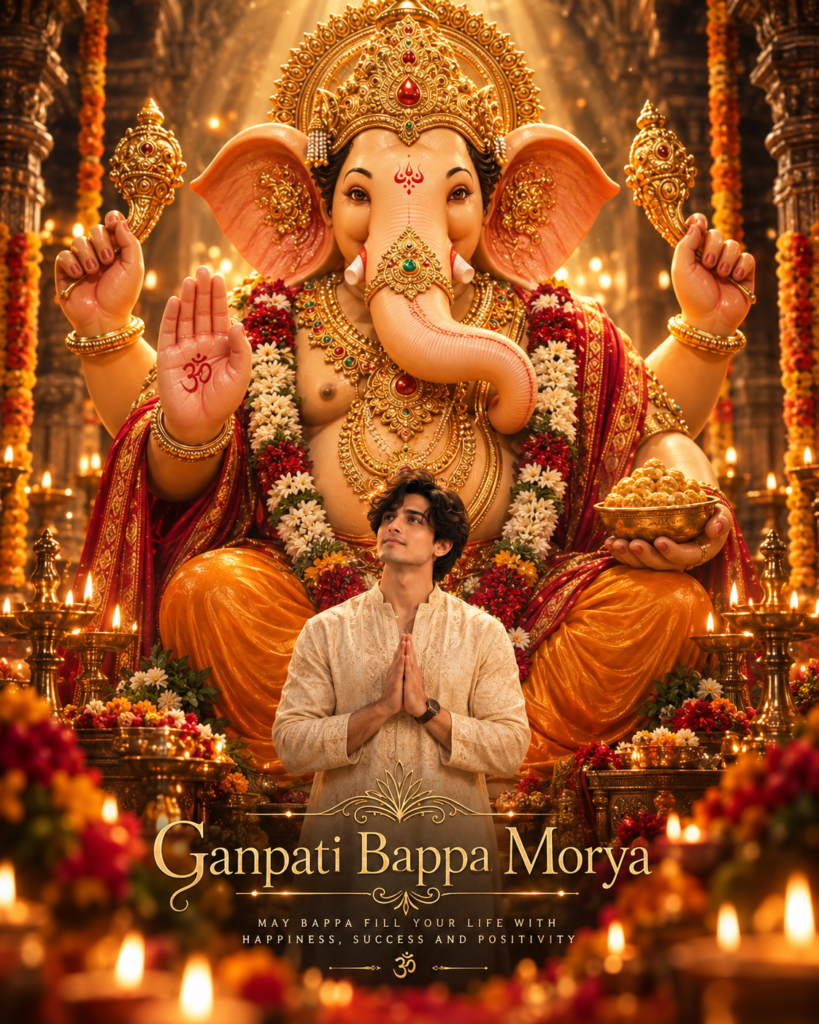
Ganpati Bappa Morya Namaste Poster AI Prompt: A Personalised Devotional Design
Ganpati Bappa Morya Namaste Poster AI Prompt is designed for anyone who wants to create a personalised devotional poster using their own photograph. Instead of sharing the same downloaded Ganesh Chaturthi graphic as everyone else, you can appear respectfully in front of a grand Lord Ganesha idol with folded hands, a calm expression, and a traditional festive atmosphere. The result is suitable for WhatsApp Status, Instagram Stories, festival greetings, profile updates, and personal social media posts.
Read Also: Om Editing Top Ganpati Bappa Saree Portrait | 1991 Retro Couple AI Photo Editing Prompt
This photo style is especially useful for devotees, families, content creators, local festival groups, and anyone preparing a memorable Ganpati celebration post. It combines your real face with a carefully arranged spiritual poster composition, so the final image feels personal while still having the visual impact of a professional festival banner. The humble namaste pose keeps attention on devotion and respect rather than making the design look like an ordinary portrait edit.
The composition also works well when you want your image to communicate faith, celebration, and cultural identity in one frame. A large idol creates a strong background presence, while your smaller placement in the foreground gives the poster a traditional devotional feeling. With the right source image, this Ganpati Bappa Morya photo editing style can create a polished result without requiring advanced design skills or complicated mobile editing software.
What This Ganpati Bappa Morya Photo Style Actually Gives You
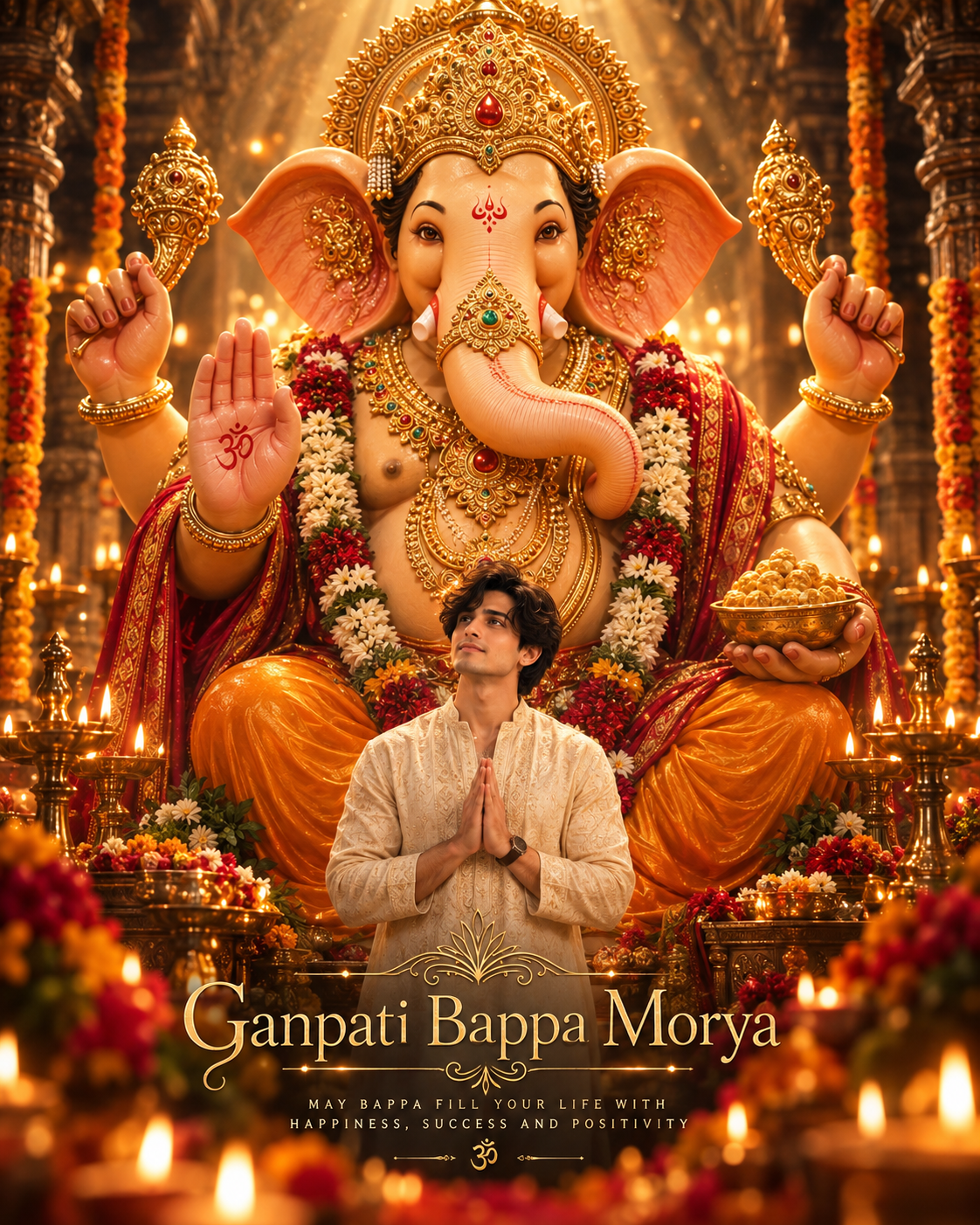
The main visual effect comes from the contrast between the towering Ganesha idol and the person standing respectfully below it. The idol becomes the dominant subject, with its crown and decorated form filling the upper portion of the frame. Your figure remains clearly visible in the lower or middle section, creating a balanced poster layout that feels intentional rather than crowded.
The lighting is generally warm, soft, and divine-looking. Golden rays or a gentle glow behind the idol can make the crown and decorations appear brighter, while subtle highlights around the subject help separate the person from the background. The mood remains peaceful and devotional, but the cinematic lighting adds enough drama for the image to stand out when viewed as a small WhatsApp Status thumbnail or Instagram Story preview.
Colours usually focus on festive and spiritual tones such as gold, saffron, red, cream, ivory, and warm brown. These shades work naturally with traditional decorations, flowers, jewellery, and temple-inspired backgrounds. A clean serif-style festival message can be placed near the bottom without covering the face, hands, or important details of the idol. The overall composition should leave enough breathing space around the lettering so it remains readable on a mobile screen.
- Lighting: Warm golden illumination creates a spiritual glow and gives the poster a premium, cinematic finish.
- Mood: Calm, respectful, celebratory, and suitable for Ganesh Chaturthi greetings or devotional sharing.
- Composition: Your smaller foreground figure contrasts with the large idol in the background for a powerful sense of scale.
- Colours: Saffron, gold, ivory, cream, and rich festive shades support a traditional Indian festival aesthetic.
- Realism: A clear face, natural body proportions, correctly placed hands, and believable shadows help the edit look like a real poster photograph.
The difference in scale is an important part of this style. You are not meant to appear equal in size to the idol. Standing or appearing small beneath Ganesha communicates humility and devotion, similar to the visual language often seen in temple artwork and festival banners. If the person becomes too large or the idol is pushed too far into the background, the spiritual poster effect becomes weaker.
How to Use the Ganpati Bappa Morya Poster Style: Step-by-Step
You can create this type of personalised poster on a mobile phone by starting with a suitable portrait and entering the provided image-editing instructions into a compatible AI photo tool. Beginners should focus first on the quality of the source photograph. A good input image makes it easier for the tool to preserve your face, understand your pose, and place you naturally into the devotional scene.
Before beginning, keep the original photo saved in your gallery and choose a quiet place with a stable internet connection if the editing tool works online. Avoid repeatedly changing the image during generation, because comparing several unrelated photos can make it difficult to identify which source gives the most accurate result. Follow these simple steps:
- Select a suitable photo: Open your phone gallery and choose a half-body or full-body image in which your shoulders, face, and folded hands are visible. A front-facing or slightly angled pose is usually easier to use than a side profile.
- Open the AI image tool: Launch the image-generation or photo-editing application you normally use. Choose the option for creating an image from a reference photo, then allow access to your gallery only if the app requests it.
- Upload the reference image: Select the chosen photograph and wait until the app finishes processing it. Check that the face is clear and that the complete upper body or full body has not been cropped by the upload screen.
- Use the supplied instructions: Paste the ready-to-use instructions into the tool’s input area without changing the devotional theme or removing important details. Keep the reference image attached while generating the poster.
- Choose a vertical format: If the tool offers aspect-ratio options, select a portrait layout that suits WhatsApp Status or Instagram Stories. A vertical frame provides enough room for the idol above, your figure below, and the festival wording at the bottom.
- Generate the first version: Start with one generation and inspect the result carefully. Look at facial resemblance, hand position, clothing, idol details, lighting, and the placement of the bottom text before deciding whether another version is needed.
- Regenerate only when necessary: If the hands look unnatural, the face changes noticeably, or the composition is too crowded, try again with the same strong reference image. Save the best version to your phone rather than overwriting every result.
- Check the final poster: Zoom in before sharing. Make sure the face is sharp, the namaste pose looks respectful, the text is readable, and no important part of the idol is hidden by cropping or interface elements.
When sharing the finished design, preview it in the same app where your audience will see it. WhatsApp and Instagram may crop or compress vertical images, particularly when text is close to the top or bottom edge. Leave a safe margin around the main subject and lettering so the design remains balanced after upload. If the image is intended for a feed post instead of a Story, create a separate crop rather than stretching the original poster.
Which Photos Work Best for This Devotional Poster
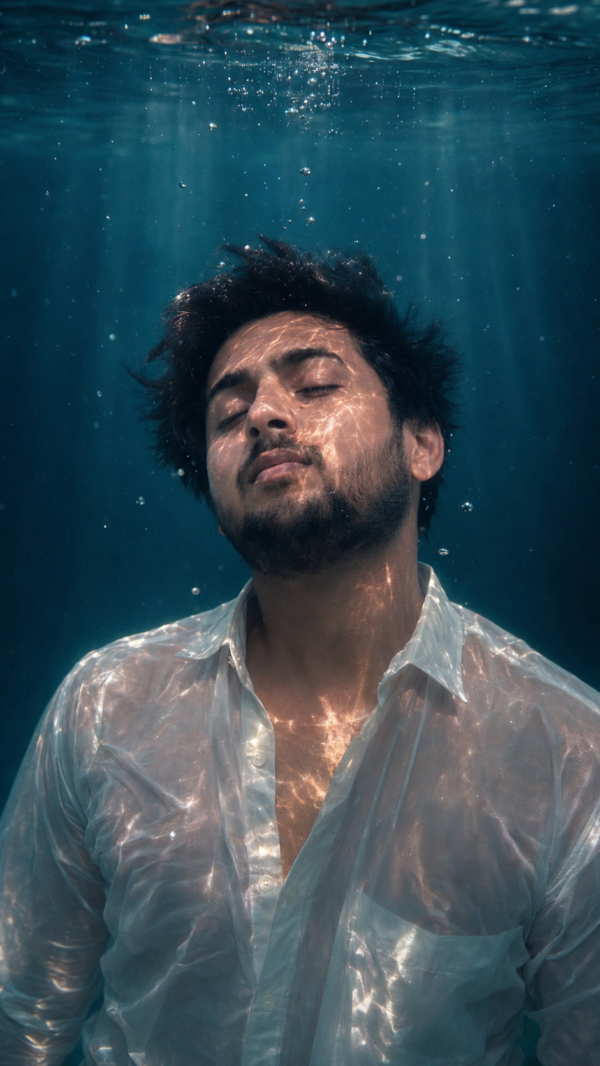
The best reference photograph shows your face clearly and gives the editing tool enough information about your pose, clothing, and body shape. Use a recent image with natural proportions and avoid photos where your hands are hidden behind another person, a bag, or a phone. Since the namaste pose is central to the design, the tool needs to see both hands or at least enough of the arms and shoulders to create a believable respectful posture.
Resolution also matters. Choose the clearest original image from your gallery instead of a screenshot downloaded from social media. A sharp portrait helps preserve facial details and reduces the chance of a blurred face in the generated poster. Natural daylight near a window or outdoors is usually better than harsh coloured bulbs, strong flash, or a dark room, because even lighting gives the tool a cleaner reference for your skin tone and facial features.
Clothing can be simple, traditional, and easy to separate from the background. Plain kurtas, shirts, sarees, or other modest festive clothing generally work better than heavily patterned outfits with tiny details. The background of the original image does not need to be perfect because it may be replaced, but a clean wall or uncluttered space can still improve the result. Keep these practical points in mind:
- Use a front-facing or gently turned angle where both eyes and the full face are visible.
- Choose a high-resolution original photo, not a compressed screenshot or blurry forwarded image.
- Prefer soft daylight and avoid red, blue, or green lighting that changes your natural appearance.
- Make sure your head, shoulders, and hands are not cut off at the edges of the frame.
- Wear clean, modest clothing in solid or lightly detailed colours that suit a devotional festival theme.
- Avoid sunglasses, face coverings, extreme filters, heavy beauty effects, and strong motion blur.
- Leave some space around your body so the final composition can place you naturally beneath the idol.
A standing full-body photograph is useful when you want a grand poster with a clear height difference between you and Ganesha. A half-body photo can work better when the design is intended to focus on your face, folded hands, and upper-body expression. In either case, choose an image where your posture looks relaxed and respectful. A forced smile, tilted camera angle, or awkward arm position may reduce the calm devotional mood of the final Ganpati Bappa Morya poster.
Pro Tips for the Best Ganpati Poster Results
A strong devotional poster depends on more than simply uploading a photo. Choose an image with a clear face, good lighting, and enough space around your shoulders and hands. A half-body or full-body photograph usually works better because the final composition needs room for the respectful pose and the surrounding spiritual design. Avoid photos where the face is hidden by sunglasses, heavy shadows, or another person.
For a polished Om Editing Top result, keep your expression calm and natural. A gentle smile or peaceful expression generally matches the devotional mood better than an exaggerated pose. The AI can create a more balanced poster when your head, shoulders, and hands are clearly visible and your body is facing the camera.
- Use a sharp reference photo: A clear, high-resolution image helps preserve facial details and reduces blurred eyes, uneven skin, or distorted features.
- Keep the pose simple: Folded hands, a straight posture, and a relaxed expression create a respectful visual focus.
- Choose suitable clothing: Traditional or plain festive clothing blends more naturally with a devotional poster design.
- Leave enough visual space: A crowded background can interfere with the idol, light effects, and decorative elements.
- Check the face carefully: Before downloading, zoom in to confirm that the eyes, nose, lips, hands, and fingers look natural.
- Use a vertical format: A portrait layout is ideal for WhatsApp Status, Instagram Stories, reels covers, and mobile wallpapers.
- Review the lettering: Decorative text can sometimes contain spelling or alignment errors, so always inspect the final image before sharing.
It is also helpful to generate more than one version instead of accepting the first result immediately. Small changes in the reference photograph, expression, or background can produce noticeably different compositions. Compare the alternatives for facial accuracy, readable text, balanced lighting, and the amount of attention given to both the devotee and the Ganesha artwork.
Common Mistakes to Avoid in AI Ganpati Posters
Many disappointing results come from a weak source image or from adding too many visual instructions at once. A poster should have one clear devotional theme, a visible subject, and a balanced background. When every area is filled with decorations, glowing effects, patterns, and extra objects, the main message can lose its impact.
- Uploading a low-quality photo: Blur and compression make it difficult for the image editor to maintain a realistic face and clean edges.
- Using a side-facing or cropped image: Important details such as the hands, shoulders, or facial structure may be changed or omitted.
- Choosing a busy background: Crowded scenery competes with the central devotional subject and makes the poster look untidy.
- Adding too many colours: Excessive colour combinations can reduce the peaceful mood and make the design appear artificial.
- Ignoring hand details: AI-generated hands may show extra fingers, unusual joints, or an unnatural namaste position if the reference image is unclear.
- Skipping the final proofread: Incorrect devotional wording, misspelled names, or poorly placed letters can make a finished poster unsuitable for public sharing.
- Overusing glow and contrast: Extremely bright effects can hide facial details and make the image difficult to view on a phone screen.
- Forcing an unsuitable crop: Cutting off the head, hands, or important artwork can break the visual balance of the entire composition.
Another common mistake is selecting an image only because it looks attractive as a personal photograph. The best source photo for an AI poster is not always the most stylish one. It should have a clear pose, even lighting, and enough room for the final layout. Taking a new photo specifically for the design can often give better results than using an old social media image.
Best Use Cases and Sharing Ideas
This type of personalised Ganpati poster works especially well when you want to share a devotional greeting that feels personal instead of using the same generic graphic found across social media. Its vertical composition can be adapted for mobile-first platforms, allowing the main artwork and your portrait to remain visible without excessive cropping.
- Instagram Stories: Share the poster as a festive story with a simple devotional caption, music, or countdown sticker.
- WhatsApp Status: Use it as a personal Ganesh Chaturthi greeting for friends, family, and community contacts.
- Instagram profile pictures: Create a tighter crop that keeps your face and the devotional design recognisable in a circular frame.
- Reels covers: Place the poster at the beginning of a celebration video, decoration tour, aarti clip, or festival vlog.
- Social media thumbnails: Use the design as a clear visual cover for festive posts, event announcements, or devotional content.
- Personal portfolios: Designers and photo editors can display the work as an example of AI-assisted festive poster editing.
- Digital invitations: Add event details separately while keeping the main artwork clean and easy to read.
Before posting publicly, check how the image appears on a smaller phone screen. Text that looks readable while editing may become too small after uploading. Keep important details away from the top and bottom edges, where app interface elements can cover them. If you plan to print the poster, create a higher-resolution version and verify that the colours, text, and facial details remain sharp outside a mobile display.
Creative Variations You Can Try
You can experiment with the same Ganpati concept without losing its respectful character. Try a warm golden colour palette for a traditional festive feeling, or use soft white and saffron shades for a calmer spiritual appearance. Deep red, maroon, and bronze can create a rich celebration theme, while green and yellow tones may suit a bright daytime festival design.
- Traditional temple mood: Use carved pillars, subtle bells, floral decoration, and warm lamp-like lighting.
- Modern minimal style: Keep the background clean with limited ornaments, soft gradients, and generous empty space.
- Royal festive look: Add deeper colours, elegant decorative borders, and a richer ceremonial atmosphere.
- Sunrise setting: Use gentle morning light and a soft sky-inspired background for a hopeful, peaceful mood.
- Evening celebration: Experiment with darker tones, glowing lamps, and a dramatic but controlled background.
- Monsoon festival theme: Include a fresh, lively atmosphere with subtle rain-washed colours and natural greenery.
- Floral decoration: Use marigold-inspired colours and tasteful flower arrangements around the main subject.
- Family greeting version: Create coordinated posters with different people while maintaining the same visual style and colour palette.
Seasonal variations can also make the design feel more relevant. A daytime poster may look best with bright natural illumination, while a night-time version can use a gentle cinematic glow. You can test a close portrait, a wider full-body composition, or a design that gives more space to the surrounding festival setting. Save the versions you like and compare them before choosing one for your final post.
Try Om Editing Top for Your Personalised Ganpati Poster
A personalised Ganpati design becomes more effective when the photograph, pose, colours, and layout work together. Start with a clear image, keep the devotional mood respectful, and review every important detail before sharing. With a few thoughtful variations, you can create a poster that feels original and suits Instagram, WhatsApp, reels, thumbnails, or a creative portfolio.
Try Om Editing Top with your best reference photo and experiment with a traditional, modern, bright, or cinematic style. Generate a few options, select the most natural result, and share your finished Ganpati poster with confidence during the festive season.
FAQ – Om Editing Top
How can I create a Ganpati Bappa Morya poster with Om Editing Top?
Upload a clear personal photo to the supported AI image editor and apply the Ganpati-themed design instructions provided on the page. Choose a photo with your face, shoulders, and folded hands visible so the devotional composition is easier to generate accurately.
Which photo is best for an Om Editing Top Ganpati poster?
Use a well-lit half-body or full-body image with your face looking toward the camera and enough space around your body. Avoid blurry photos, heavy shadows, crossed arms, or objects covering your hands, since these can reduce the quality of the final edit.
Can I make this Ganpati Bappa Morya design on a mobile phone?
Yes, you can create the design on a mobile phone when the AI editing tool supports phone uploads and image downloads. A stable internet connection and a high-resolution source photo will usually produce better results than a compressed image from a messaging app.
Is Om Editing Top free to use for Ganpati photo editing?
Whether Om Editing Top is free depends on the AI tool or platform you use to generate the image. Check the tool’s current usage limits, credits, and download conditions before starting if you want to avoid unexpected restrictions.
Why does my generated poster look different from the example?
AI results can vary because the source photo, facial angle, lighting, image quality, and wording of the instructions all influence the output. Try a clearer front-facing image and regenerate it if the idol scale, pose, clothing, or background does not match your preferred style.
How can I fix incorrect text in a Ganpati Bappa Morya AI poster?
AI image tools often misspell decorative text or create distorted letters. Generate the image without lettering and add the correct “Ganpati Bappa Morya” wording afterward with a mobile design or photo-editing app for a cleaner result.
Can I use the finished Ganpati poster for WhatsApp and Instagram?
Yes, the finished image can be adapted for WhatsApp Status, Instagram Stories, profile updates, or festival posts. Export a vertical version for Stories and Status, and keep the face and devotional subject inside the platform’s safe area so they are not covered by interface elements.
What should I do if the face or folded hands look unnatural?
Regenerate the image using a sharper source photo where the face and hands are fully visible. You can also try a simpler pose, softer lighting, and fewer background details, which may help the AI preserve the person’s features more naturally.
FAQ: Ganpati Bappa Morya Namaste Poster
How do I use the "Ganpati Bappa Morya Namaste Poster" prompt?
Copy the prompt above, open Gemini or ChatGPT, upload a clear photo of yourself and paste the prompt. Generate the image and adjust the outfit or background if you want a variation.
Is this prompt free?
Yes. This prompt is free to copy and use for Instagram, reels, WhatsApp DP and profile pictures.
Which photo works best?
A sharp, front-facing, well-lit photo with no filter. A clear face helps the AI keep your identity in the final image.
Last updated: 12 September 2026
💬 Comments